01 / Integration Flow
Back-office entry: https://bfx999.com/
The overall integration consists of 4 steps:
| Step | Name | Description |
|---|---|---|
| Step 1 | Submit application | Submit account-creation application materials |
| Step 2 | Obtain account and initial password | Receive the back-office account after approval |
| Step 3 | Generate API Key and Secret Key | Generate integration credentials |
| Step 4 | Integrate the Login / Wallet API | Complete the integration |
1.1 Submit Application
Account Structure
The system uses a two-tier account structure:
- Master agent: the highest-privilege account, which can manage all agents beneath it and view reporting data for the entire hierarchy.
- Agent: the line account actually used for API integration. Player logins and API calls operate at the agent level; each agent represents an independent line and is bound to a single currency, which cannot be changed after account creation.
After account creation, credentials for both the master agent and the agent will be provided. Use the corresponding agent credentials for API integration.
Provide the following complete information; your account will be activated once it is received:
| Field | Description | Example |
|---|---|---|
| Master agent code | Up to 6 characters | BFXMGR |
| Master agent name | All lowercase | bfxmain01 |
| Agent code | Up to 6 characters | agent1 |
| Agent name | All lowercase | bfxagent01 |
| Wallet type | Transfer wallet (single wallet not yet supported) | — |
| Currency | Each agent supports only one currency, which cannot be changed after account creation; see the supported currency list | — |
| IP allowlist | Divided into front-end and back-end; see 1.1.1 | — |
| Contact | Provide an email / Telegram account to receive account-creation details | — |
Codes and names may contain letters and digits only, with no special characters.
1.1.1 IP Allowlist Notes
The IP allowlist is divided into two types, front-end and back-end. Both must be submitted with your application and will be configured by the platform on your behalf.
Front-end allowlist (for API integration)
Used for server-to-server communication. After a player logs in via the merchant server, the request is forwarded to the platform server. The platform accepts only IPs on the allowlist and rejects all others. Provide the outbound public IP of the merchant server; cloud servers typically use fixed IP ranges — for example, GCP is often
34.x.x.xand AWS is often52.x.x.x.Back-end allowlist (for staff login)
Used when merchant staff log in to the back-office management interface. Provide your office's public IP. Once configured, even if the account and password are leaked, anyone from a non-matching source IP still cannot log in, greatly improving account security.
Format notes
Both allowlist types must be submitted as a single IP in
/32format (for example,220.135.95.166/32). Entire ranges (/24) are not accepted.
1.2 Obtain Account and Initial Password
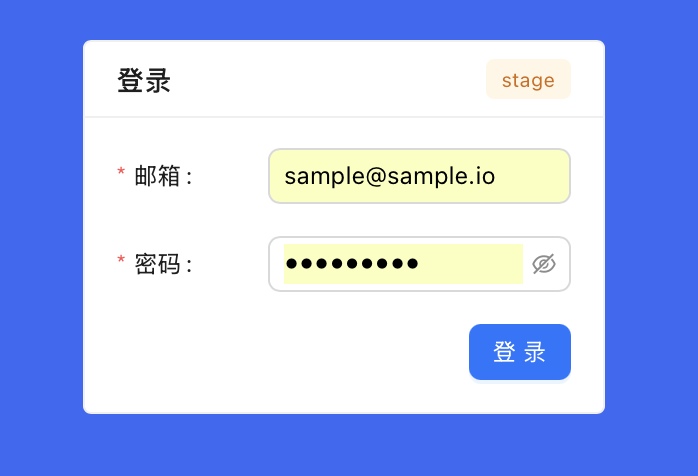
After approval, you will receive the account and initial password required to log in to the back office. Log in with the account and password at: https://bfx999.com/
IMPORTANT
After your first login, change the initial password immediately to secure your account.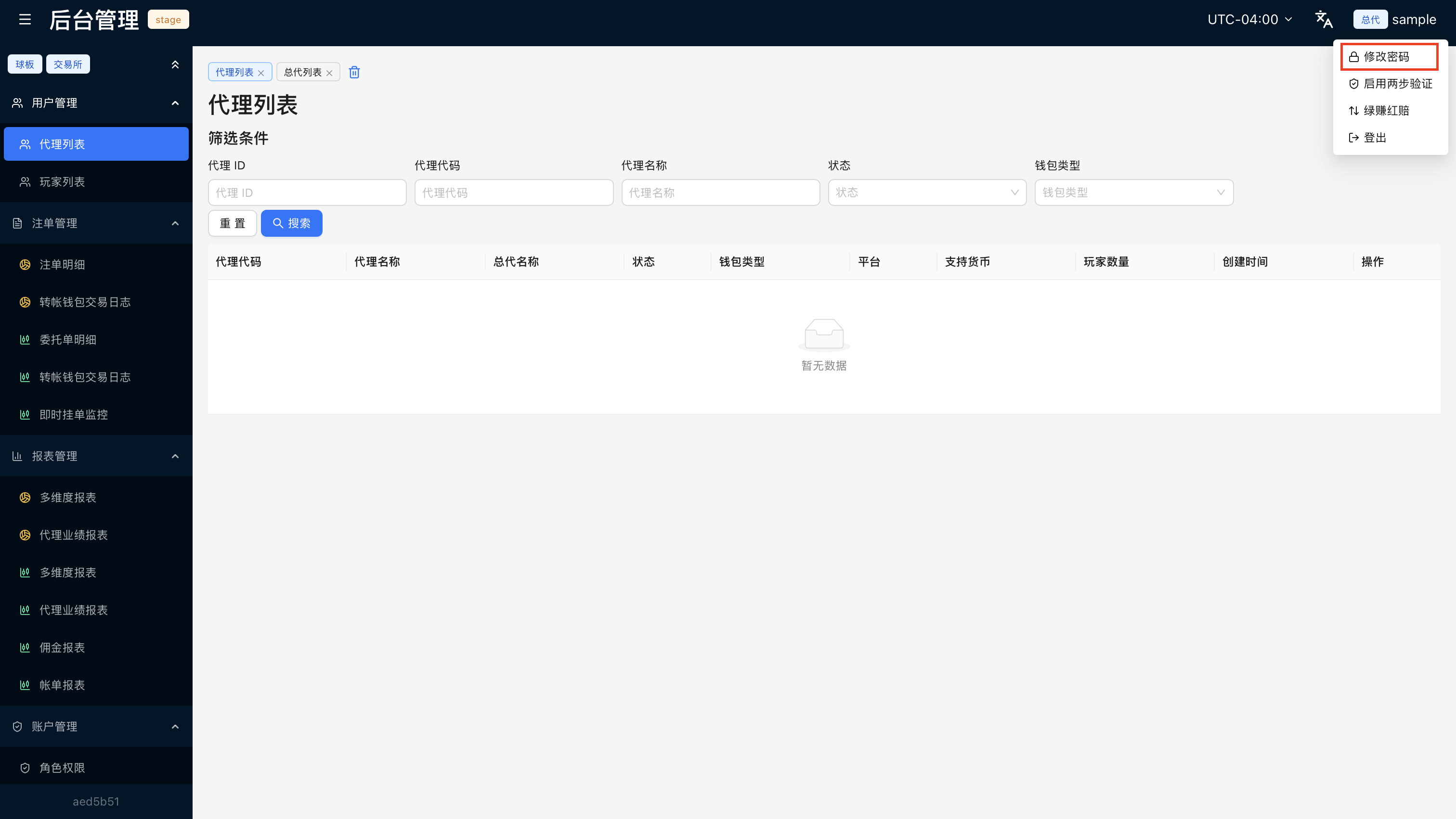
1.3 Obtain API Key, Secret Key
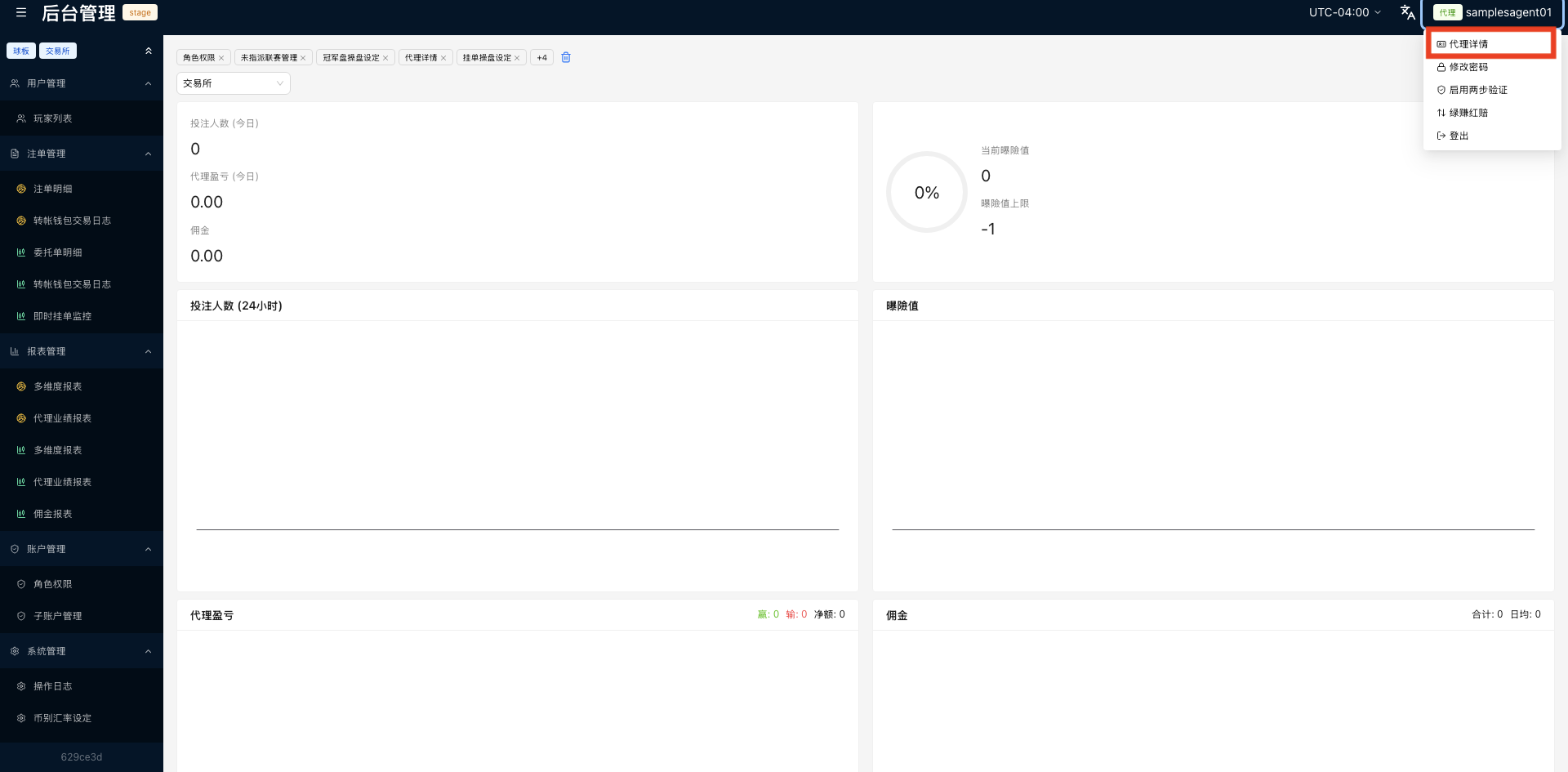
API Keys are generated at the agent level; each line uses its own credentials. Log in to the back office with the agent account, click Add on the API management page (the label is freely configurable and does not affect usage), and a pair of API Key and Secret Key will be generated.
IMPORTANT
The Secret is shown only once — be sure to record it first!